
Custom Reporting
Custom Reporting is a feature-rich module that allows users to generate tailored data reports from one or more applications, meeting specific analytical or operational needs.
Key Capabilities:
- Application-Specific or Multi-App Data Access:
- Download data from a single application or combine data from multiple applications as required.
- Customizable Date Range:
- Define a specific time period to extract relevant data within the chosen range.
- Flexible Metric Selection:
- Choose from a variety of metrics to include only the data points necessary for analysis.
- Advanced Filtering Options:
- Apply filters to refine results and obtain precise, targeted data sets.
- Application-Specific or Multi-App Data Access:
Where to find Custom Reporting -
- Hover over the Sidebar>>Select ASA>>Select Custom Reports
-
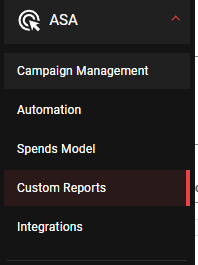
Custom Report on Sidebar Location -
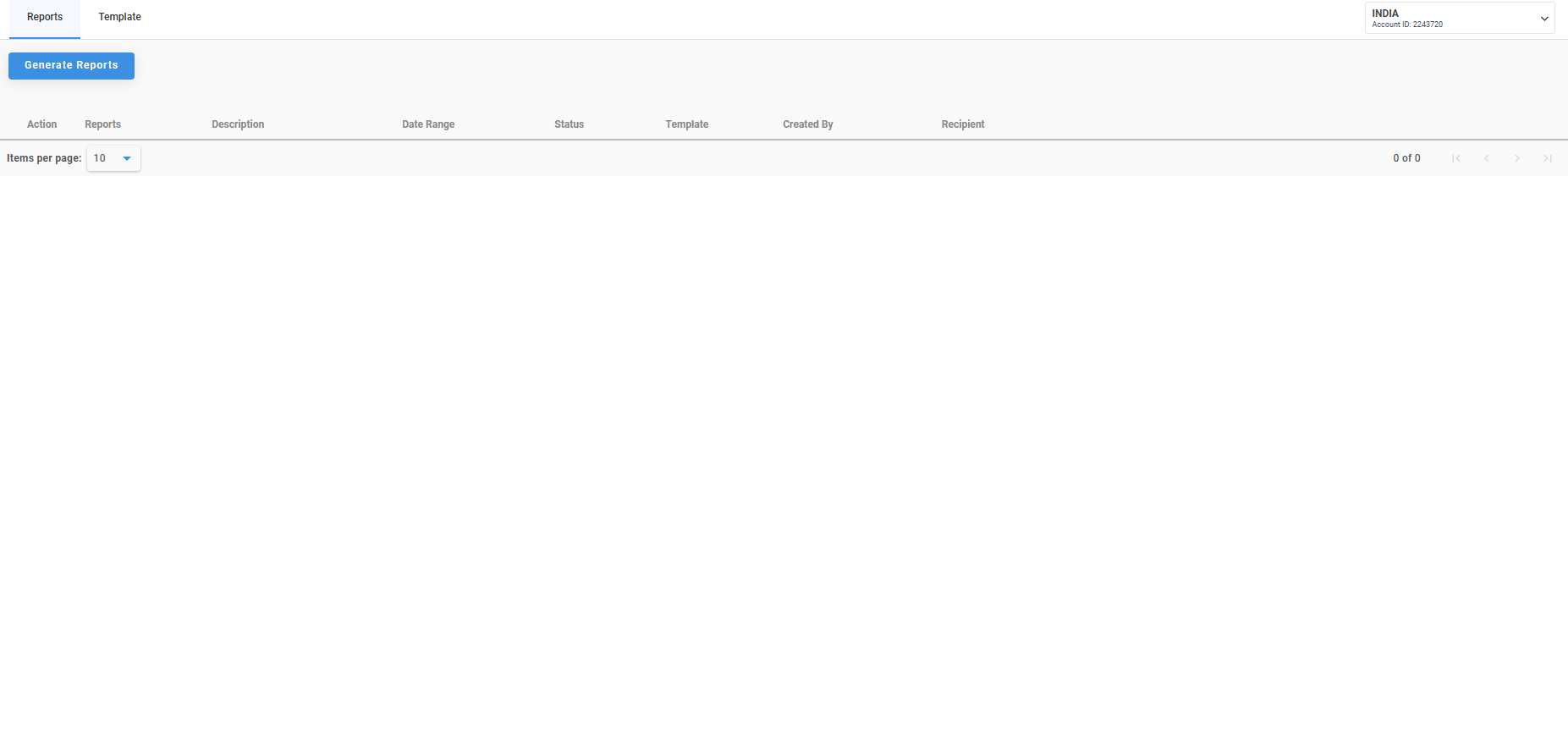
Post Click Visual of Custom Reports - Generate Reports Button - A prominent blue box labeled "Generate Reports" enables users to create new reports effortlessly.
- As well as a List of Columns -
- Action: Specifies whether to download or delete the report.
- Reports: Displays the name of the system-generated report.
- Description: Contains additional details or external descriptions.
- Date Range: Indicates the time period covered by the report.
- Status: Shows the report’s availability for download.
- Template: Describes the format or template of the report.
- Created By: Lists the user or entity that created the report.
- Recipient: Identifies the intended recipient(s) of the report.

How to Create a Custom Report -
- Select Generate Reports
Creating Custom Reports is divided into 3 sections -
- Setup
- Dimensions
- Metrics
-
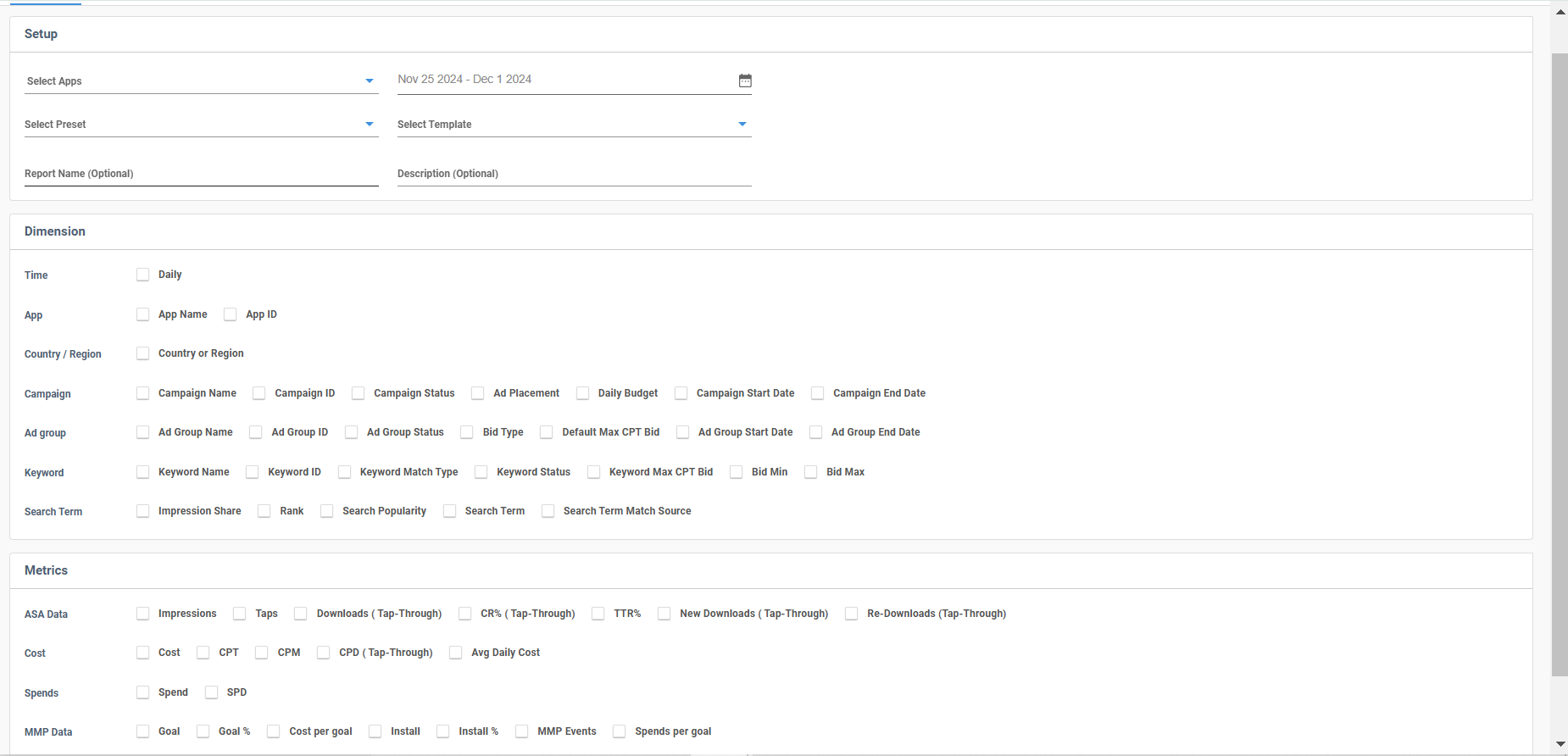
Custom Report Generation Page Visual
Setup -
-
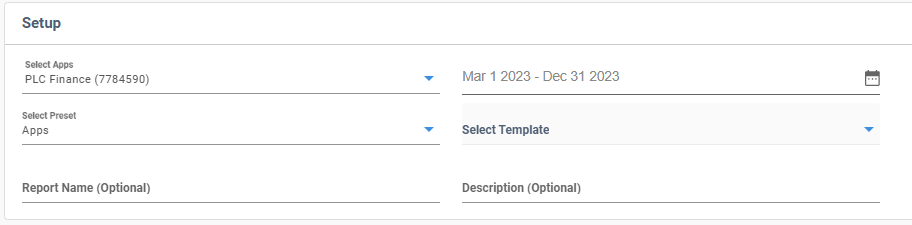
Setup Section Visual Select App or Apps
Select the date range the report has to be generated for
Select Preset -
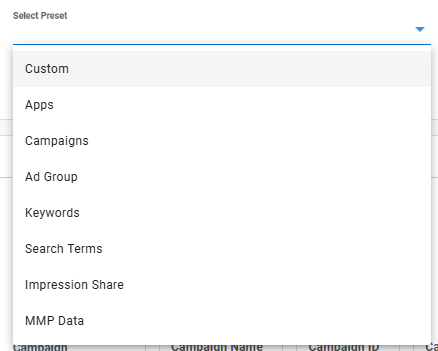
Select Preset List Dropdown -
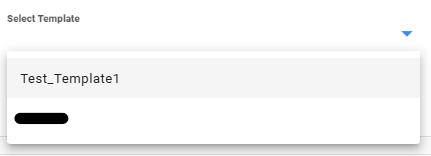
Select Template Dropdown List
- Template - Is a predefined preset of dimensions and metrics selected by the user according to his/her requirement. Therefore, which can be also used for future custom reports, just by selecting through the Select Template Dropdown List.
- Incase, User has a Template, therefore, directly, select the template and non need to select any Preset.
- Custom: Allows users to select specific dimensions and metrics based on their requirements.
- Apps: Provides a detailed performance report of the selected app(s).
- Campaigns: Offers an in-depth report on the performance of all campaigns under the selected app(s).
- Ad Group: Displays detailed insights into the performance of Ad Groups under the selected app(s).
- Keywords: Generates a comprehensive report on the performance of all Keywords associated with the app(s).
- Search Terms: Reports on added Keywords and their Search Term performance for the selected app(s).
- Impression Share: Delivers insights into the Impression Share performance of Keywords under the app(s).
- MMP Data: Provides detailed reports on event performance for activities running under the app(s).
- Enter Report Name(Optional)
- Enter a Description(Optional)
Dimensions -
- Time: Currently only the "Daily" time option is supported on Newton.
- App: Includes the App Name and App ID details.
- Country/Region: Displays metrics segmented by country or region.
- Campaign: Provides options for Campaign-specific details.
- Ad Group: Offers detailed insights and options for Ad Group performance.
- Keyword: Presents performance options for individual Keywords.
- Search Term: Includes options for Impression performance and Search Term ranking details.
-
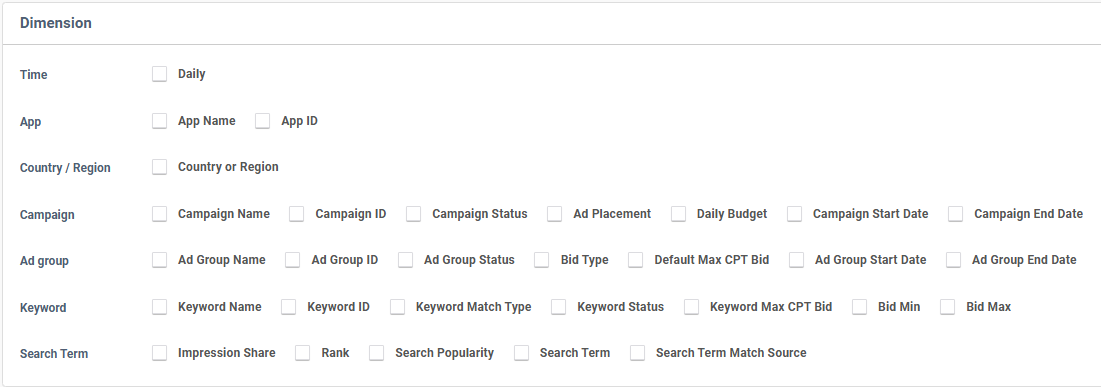
Dimension Section Visual
- In case, when Custom Preset is selected, It is necessary that user selects the dimensions according to requirement.
Metrics -
- ASA Data: Includes metrics such as Impressions, Taps, and other Apple Search Ads-related data.
- Cost: Provides options for analyzing cost-related metrics.
- Spends: Displays options for detailed Spend-related data.
- MMP Data: Covers all metrics related to MMP data, such as events and their performance.
-
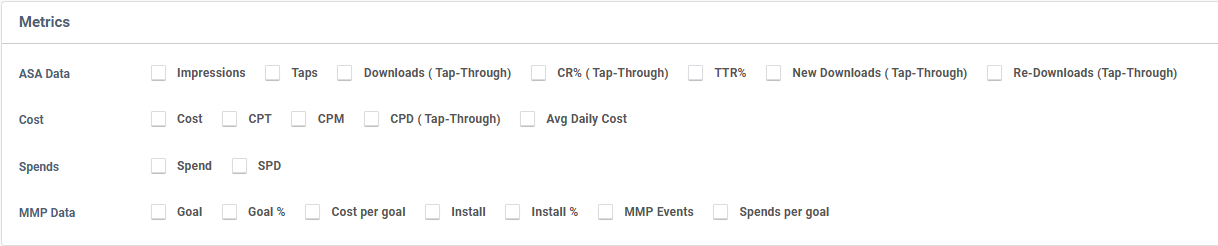
Metrics Options Visual
- In case, when Custom Preset is selected, It is necessary that user selects the Metrics according to requirement.
- Selection: Choose the required dimensions and metrics based on reporting needs.
- Generate Report: Click the "Generate Report" button located at the bottom right to initiate the report creation process.
- Result - The Report will be shown on the Custom Report Page and is ready to be downloaded.

- Incase, the report generated exceeds 1 lakh rows, it'll be further divided into different .csv files in the Zip File
Sharing Feature -
Just beside the download option there is an option to share the report -

Share Option - Where user will have 2 options available to share the report -
- Via Email
- Via Slack

Case 1-
- When user selects - ' Share via Email'
- A box will be shown having a User dropdown list and below that a field to enter a valid Email-address

- Once selected through the user list or entered the email-address
- Click on Share Report
- Result -
- The custom report will be shared directly to the respective e-mail address/addresses
Case 2 -
- When user selects - 'Share via Slack'

- A box will shown, where -
- Firstly, user has to connect workspaces
- Then a list will appear of channels and people
- Enter name/channel and select from list, or enter exact ID.
- Enter a message
- Result -
The custom report will be shared directly to the respective person/channel