
Activity Log
How to View the Activity Log -
- Select on Activity Log Tab from Above
- User will land-up to page shown as below -
-

Post Click on Activity Log Visual Select App from the Dropdown -
- If, User wants to see activity done for any particular, therefore, select that specific app
- On no selection, It would automatically be selected on All Selected
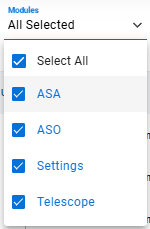
Select the Module from the provided dropdown list -
- Select All
- ASA
- ASO
- Settings
- Telescope
On no selection, It would automatically be selected on All Selected
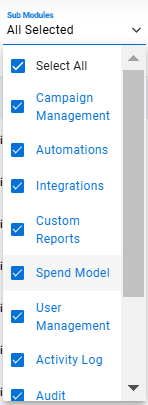
Select Module Dropdown List Select Sub Modules from its Dropdown List -
- Select All
- Campaign Management
- Automations
- Integrations
- Custom Reports
- Spend Model
- User Management
- Activity Log
- Audit
- AI Keywords
- Service Account Integration
On no selection, It would automatically be selected on All Selected
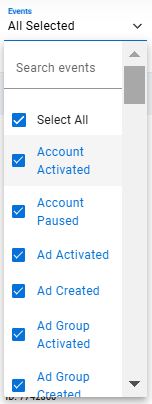
Sub Module Dropdown List Select the Events from the Dropdown List -
- Select All: Enables selecting all available options simultaneously.
- Account Activated: Indicates an account has been successfully activated.
- Account Paused: Reflects that an account is currently paused.
- Ad Activated: Confirms an advertisement has been activated.
- Ad Group Created: Logs the creation of a new Ad Group.
- Ad Group Edited: Tracks changes made to an existing Ad Group.
- Ad Group Paused: Marks an Ad Group as paused.
- Ad Group Removed: Logs the deletion of an Ad Group.
- App Created: Records the creation of a new app entry.
- App Edited: Tracks edits applied to an existing app.
- App Paused: Indicates an app has been paused in the system.
- Campaign Activated: Shows that a campaign has been activated.
- Campaign Created: Logs the creation of a new campaign.
- Campaign Edited: Reflects updates made to an existing campaign.
- Campaign Group Sync: Captures the synchronization of a Campaign Group.
- Campaign Paused: Indicates a campaign is now paused.
- Campaign Removed: Logs the removal of a campaign.
- Daily Budget Updated: Tracks updates to a campaign's daily budget.
- Data Sync From ASA: Records data synchronization from Apple Search Ads (ASA).
- Data Synced: Confirms that a data synchronization process is complete.
- Default Max CPT Bid Updated: Logs changes to the default maximum Cost-Per-Tap bid.
- Keyword Activated: Marks a keyword as activated.
- Keyword Added: Logs the addition of a new keyword.
- Keyword Duplicated: Reflects that a keyword has been duplicated.
- Keyword Paused: Indicates a keyword has been paused in the system.
- Keywords Allocated: Logs the allocation of keywords to campaigns or Ad Groups.
- Keywords Generated: Captures the automatic generation of keywords.
- Logs Generated: Indicates system or activity logs have been created.
- MMP Updated: Tracks updates made to the Mobile Measurement Partner integration.
- Max CPT Bid Updated: Logs changes to the maximum Cost-Per-Tap bid.
- Monthly Budget Updated: Tracks updates to a campaign’s monthly budget.
- Negative Keyword Duplicated: Logs the duplication of a negative keyword.
- Negative Keywords Removed: Reflects the removal of negative keywords.
- Negative Keywords Added: Logs the addition of new negative keywords.
- New Service Account/Campaign Group Integration: Tracks the integration of a new service account or Campaign Group.
- PDF Downloaded: Indicates that a PDF report has been downloaded.
- PDF Generated: Confirms the generation of a PDF report.
- Report Downloaded: Logs the download of a report.
- Report Generated: Records the creation of a new report.
- Rule Activated: Indicates a rule has been activated.
- Rule Added: Logs the addition of a new rule to the system.
- Rule Associated: Tracks the association of a rule with specific entities.
- Rule Deleted: Records the deletion of a rule from the system.
- Rule Edited: Tracks modifications made to an existing rule.
- Rule Paused: Indicates that a rule has been paused.
- Spend Model Updated: Logs updates to the spending model configuration.
- User Activated: Records the activation of a user account.
- User Edited: Logs changes made to a user’s profile.
- User Invited: Indicates that a user invitation has been sent.
- User Login: Tracks a user’s successful login to the system.
- User Paused: Reflects the pausing of a user account.
- User Invited for Service Account/Campaign Group Integration: Logs invitations sent for service account or Campaign Group integration.
- On no selection, It would automatically be selected on All Selected
-
Event Dropdown List - Date Range Selection: Choose the desired date range from the options available on the right side.
- Automated Execution: Once the options are selected as per the requirements, Newton will automatically process the data and generate the desired results.
Download Activity Log -
- Select Date Rage
- Filter out according to requirement -
- Apps
- Modules
- Sub Modules
- Events
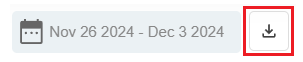
- Click on Download, Beside Calendar -
-
Download Button
- Select from Download Dropdown -
- Current Date Selection
- Last 30 Days
- Last 60 Days
- Last 90 Days
-
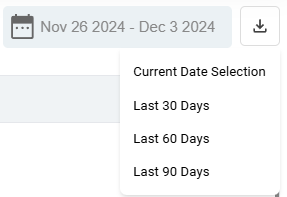
Download Dropdown List - The file would be downloaded in .csv format
