
NIKO
Lead App Marketing with Niko
I. The dynamics of running Apple Ads
II. Niko: The co-pilot powering every campaign
III. How Niko delivers measurable impact
IV.. Always-on, Goal-driven and Adaptive
The Impact: Advertisers Love Niko
- Lower CAC: Significant improvement across all metrics from Impression Share and Tap-
- Scalability and Efficiency: Advertisers can run more campaigns at once, confidently
- Minimum ad wastage: By shifting ad spend to incremental users, eliminating low-quality
- Unmatched Competitive Edge – By analyzing data in real time, Niko enables smarter
Where to find NIKO -

- Login on Newton Platform
- Hover over the Sidebar
- Click on the ASA Section
- Select on 'NIKO'
- Click on 'AI Automation'
- Start the Automation
How to Use NIKO -
- After Selecting NIKO from the sidebar
You'll see the following landing page -
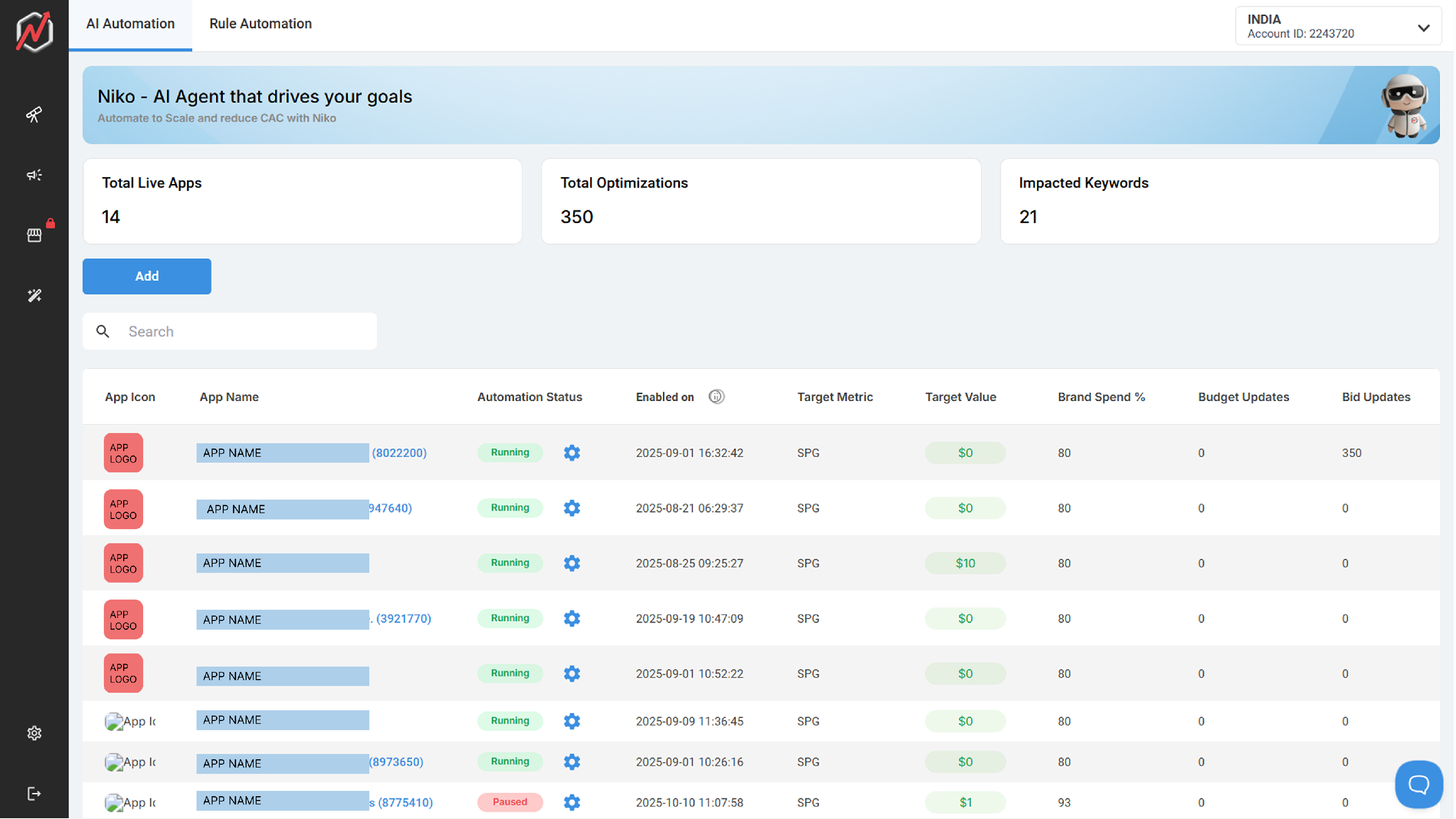
Landing Page After click on NIKO
- Now, Select your preferred campaign group & App
- Select ' Add '
-

Select 'Add' Visual Select the App Name
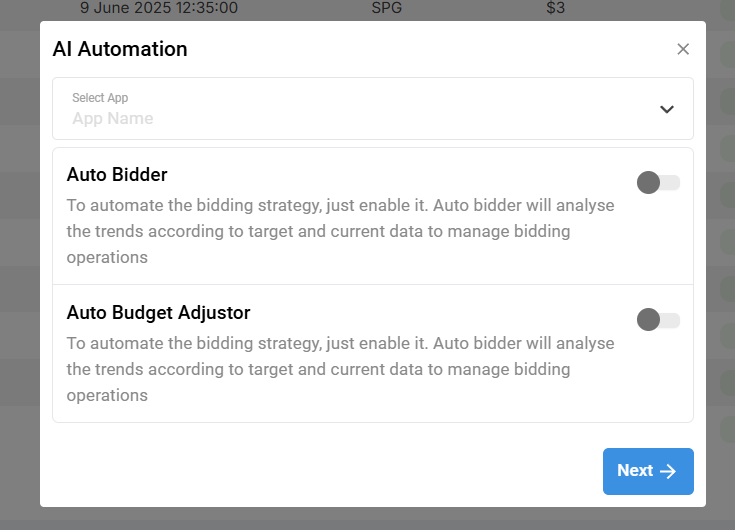
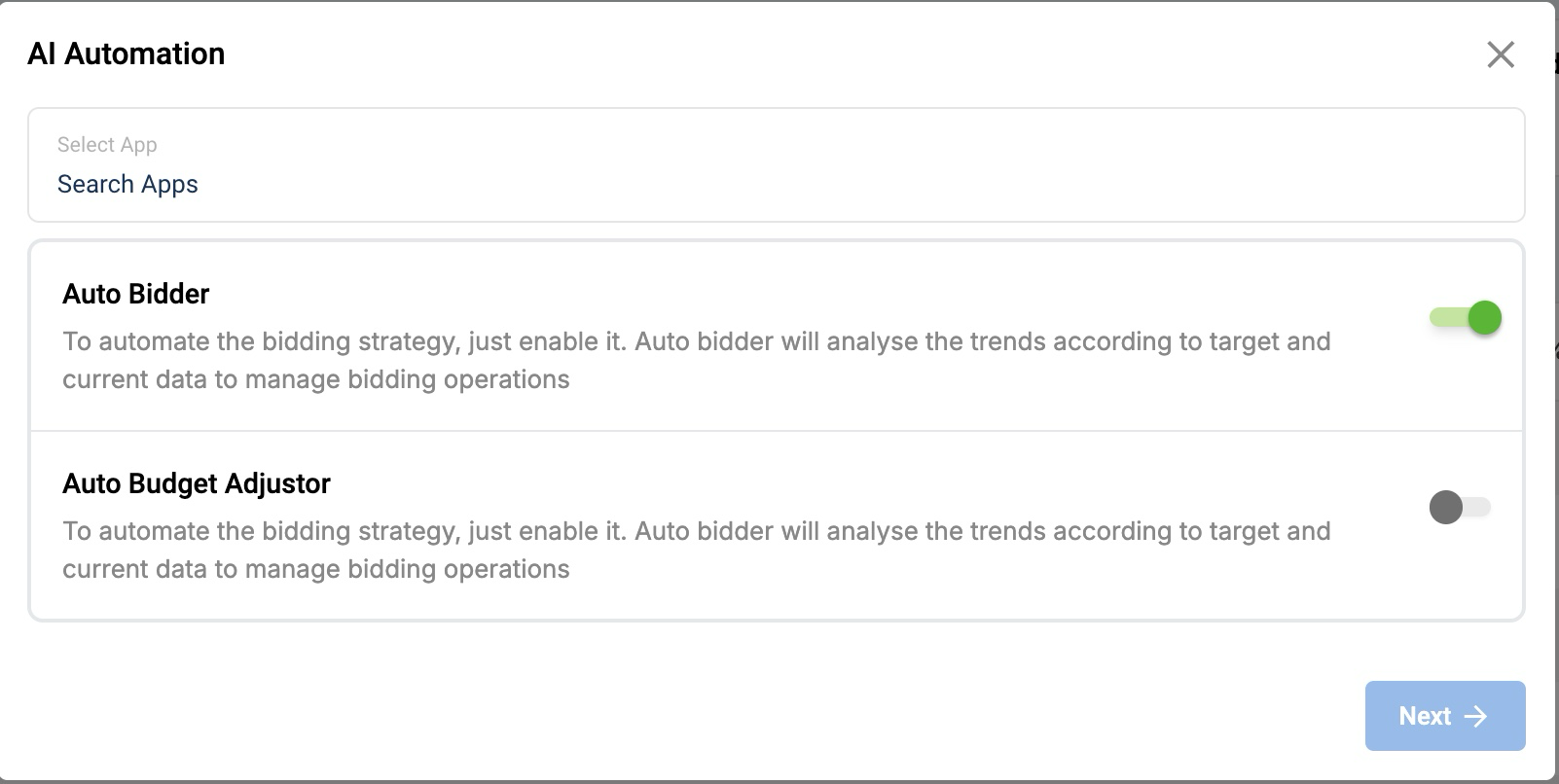
Post Click - Pop-up Box Visual - Click to turn on either or both of the Options -
- Auto Bidder
- Auto Budget Adjustor
- Click on 'Next'
Goal Setup
Setup your goal
-
Post -Click - Goal Setup Pop-up Box - Adjust your Brand Spends
- Select a suitable strategy for your campaign
- Optimize Cost Per Acquisition
- Maximize Events( In-app Events/Goals)
- Maximize SOV(Share of Voice)
- Select Event Type -
- SPG(Spends Per Goal)
- Enter a Target Value according to your desired strategy and goal
- Lastly, to start the automation
- Click on 'Start Automation'
Post Automation has Started -
Monitoring -
- Once Automation has started you can monitor its performance by Selecting your app from the landing page of NIKO
- Once selected, following is the Landing Page -
-
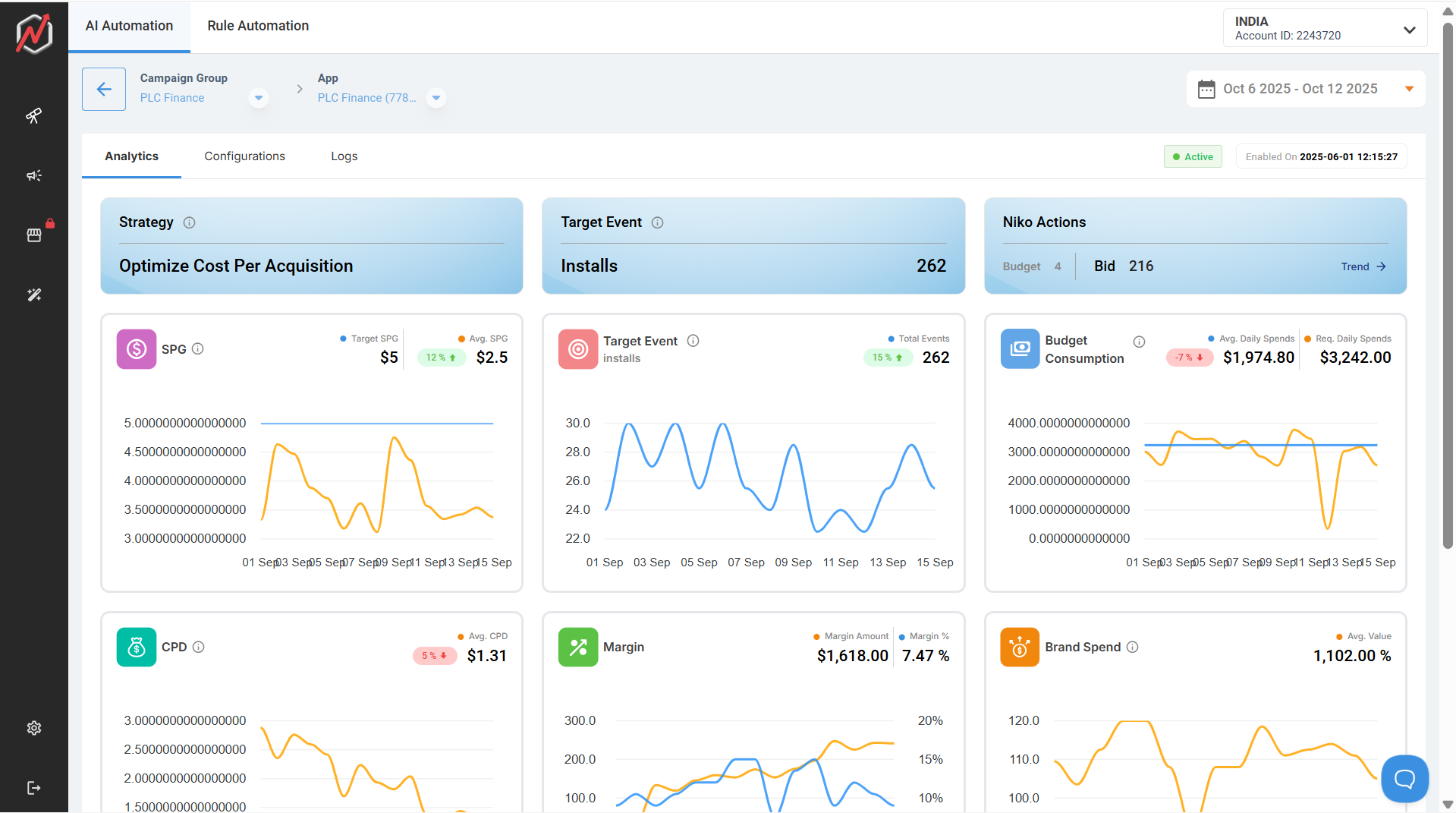
Landing Page of Performance - Here, on top there are 3 sections to monitor the performance -
- Analytics
- Configurations
- Logs
Analytics
- On the top there is a row of cards stating -
- Strategy being used
- Event name
- Niko Actions
- Budget
- Bid
- Further, 3 line charts are shown below the row of cards to get a more clear understanding of the trend over the period
- The charts are on/about -
- SPG - Showing the Target and Current SPG and the performance rate
Following is the visual -
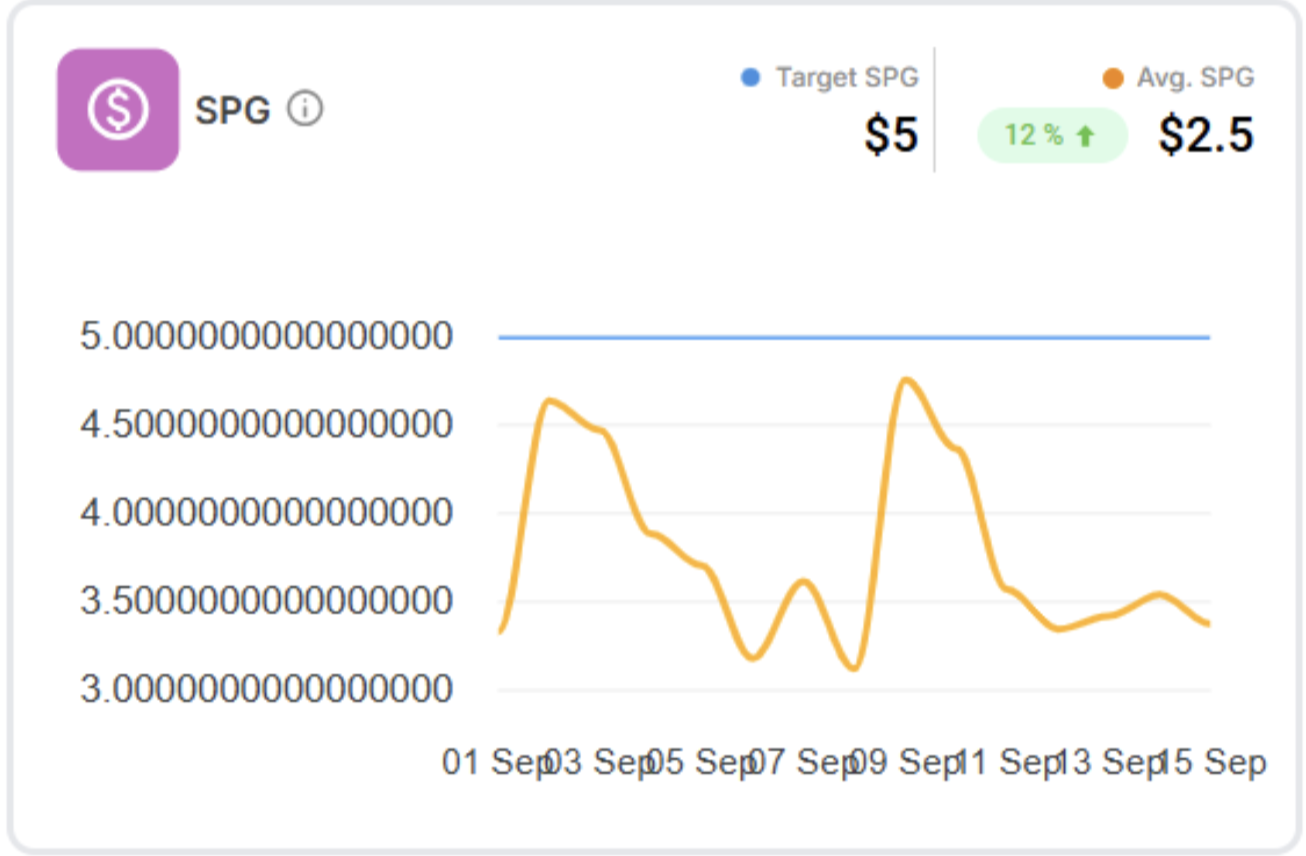
SPG Chart - Target Event - Showing the current value of the Events/ or over the selected period of time
- Following is the Visual -
-
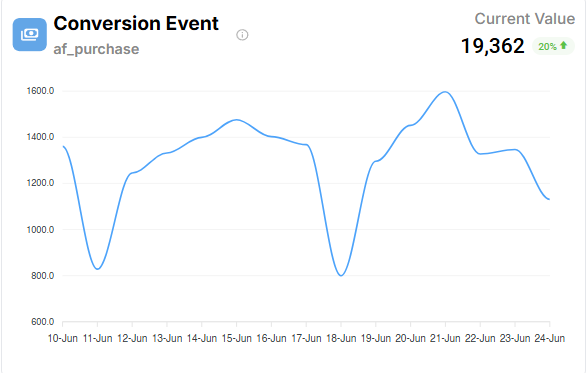
Event CR Chart 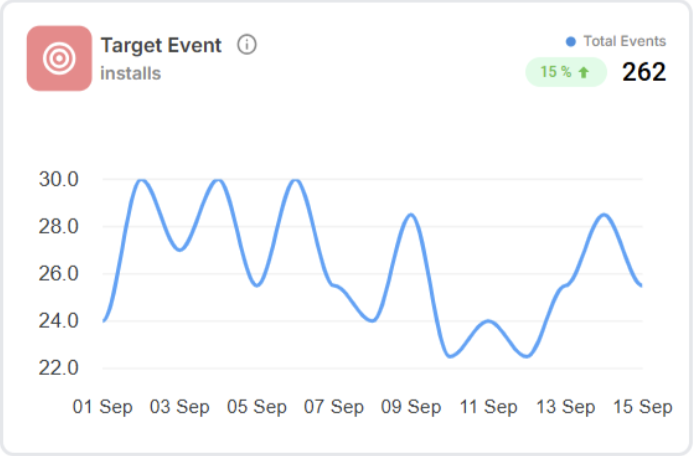
Target Event Chart - Budget Consumption - Shows the amount of budget consumed
- Following is the Visual -
-
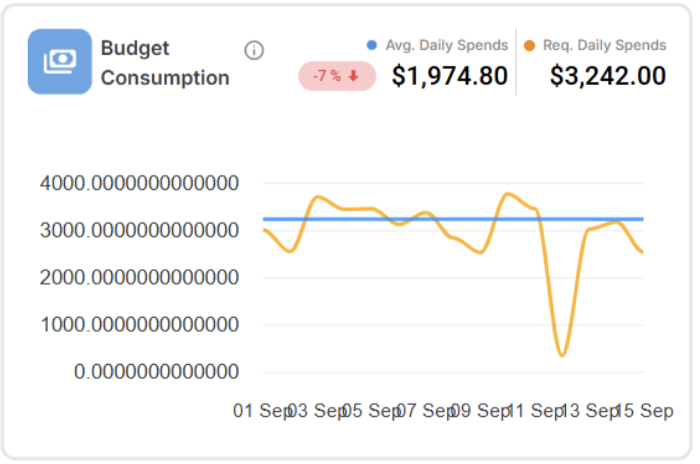
Budget Consumption Chart
Furthermore, Below that, you can see a table consisting of the performance metrics -
-
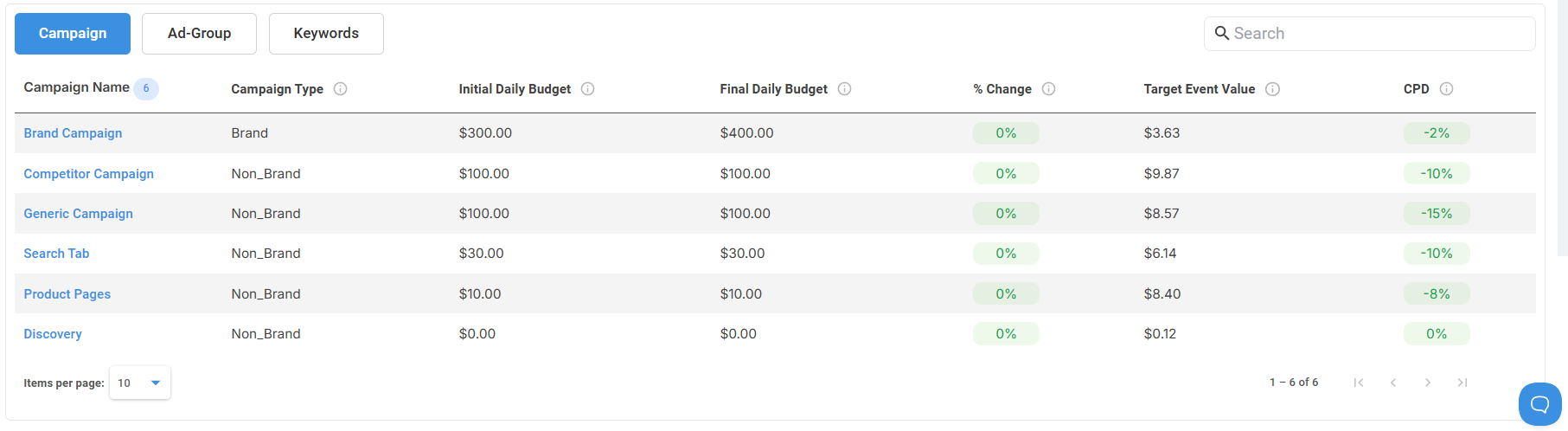
Table Visual - Following Column Names would be visible in the table -
- Campaign Name
- Campaign Type
- Initial Daily Budget
- Final Daily Budget
- Budget Change(%)
- Downloads
- Cost
- CPT
Next Tab that is seen is the Ad Group tab which -
- Allows you to monitor and manage bid adjustments, cost performance, and target event values across all your ad groups. This section provides a detailed summary of key metrics to help optimize bidding strategies effectively.
| Column Name | Description |
|---|---|
| Ad Group Name | The name of the ad group. Each row represents one ad group. The name also indicates the match type (e.g., Exact Match, Broad Match, Search Match). Clicking the name may open detailed performance metrics for that ad group. |
| Initial Bid | The starting bid amount set for the ad group before any automatic or manual adjustments. Displayed in USD. |
| Final Bid | The current bid amount after applying bid changes. This reflects the active bid being used in campaigns. |
| Bid Change % | The percentage change between the initial bid and the final bid. Positive values (shown in green) indicate an increase in bid, while negative values (shown in red) indicate a decrease. |
| CPD (Cost per Desired action) | The average cost incurred per desired action or conversion within the ad group. This helps evaluate cost efficiency. |
| Target Event Value | Represents the average value of the conversion or target event achieved through the ad group. It helps compare ad spend to potential returns. |
Following is the Visual of Ad-Group Tab -

Purpose
This view helps advertisers:
- Track and compare bid adjustments across different ad groups.
- Evaluate cost performance versus event value.
- Identify underperforming ad groups and adjust bids for better ROI.
The Next Tab is called- Keywords
- The Keywords tab provides a detailed view of performance and bidding metrics for each keyword within your campaigns. This helps you analyze keyword-level effectiveness, understand bid changes, and optimize cost efficiency for better ad performance.
| Column Name | Description |
|---|---|
| Keyword Name | Displays the name of each keyword. Below the keyword, you can also see the associated brand or ad group name for quick context. |
| Downloads | The total number of downloads or conversions attributed to the keyword during the selected period. Indicates keyword engagement success. |
| Cost | The total amount spent on this keyword. This includes the sum of all ad interactions or impressions linked to it. |
| CPT (Cost Per Tap) | The average cost incurred each time a user interacts (taps/clicks) with the ad linked to the keyword. |
| CPD (Cost Per Download) | The average cost per successful conversion or download generated by the keyword. Calculated as total cost divided by total downloads. |
| CPG (Cost Per Goal) | The average cost per achieved goal or target event associated with the keyword. Useful for understanding goal-based ROI. |
| SPD (Spend Per Download) | Represents the total spend required for each download. This may be used interchangeably with CPD, depending on your campaign’s setup. |
| Margin | The net profit or difference between the revenue generated and the cost incurred for that keyword. Calculated as (Revenue – Cost). |
| Margin % | The profit margin percentage, indicating the efficiency of spending. Calculated as (Margin ÷ Revenue) × 100. Higher values represent more profitable keywords. |
| S (Sales) | The total sales revenue generated through this keyword. This helps evaluate direct revenue contribution from the keyword. |
| G (Gross Profit) | The gross profit derived from the keyword before subtracting marketing or platform fees. Shows the total financial gain from sales. |
| Spg (Spend per Goal) | Represents how much is spent for every unit of goal profit generated. A lower value indicates better cost efficiency. |

Purpose
The Keyword Performance View helps advertisers:
- Evaluate which keywords generate the best engagement and conversions.
- Monitor and adjust CPT bids for cost optimization.
- Identify high-performing keywords that deliver better conversion rates at lower costs.
- Detect underperforming keywords that may require bid reduction or pausing.
Configuration -

- The AI Automation Configuration section helps advertisers get the most out of their campaigns by using Niko’s smart automation tools. Here, you can control how Niko adjusts bids, manages budgets, and sets performance goals — all aimed at improving results while saving time.
Step 1. AI Bid Optimization -
- This feature lets Niko automatically adjust your campaign bids in real time.
- It analyzes live performance data and updates bids to get the best possible results.
- The goal is to spend smarter — increasing conversions while keeping costs efficient.
- You don’t have to manually tweak bids; Niko does it continuously based on your set strategy.

Step 2. Budget Optimization
Niko ensures your campaign budgets are distributed in the most effective way.
- It monitors how each campaign is performing and shifts budgets where they’ll have the biggest impact.
- This helps make sure no money is wasted and every dollar contributes to genuine growth.
- It’s especially useful when managing multiple campaigns under one group.

Step 3: Goal Setup
This section defines how you want Niko to measure and prioritize campaign success.
You can set spending priorities and define your target performance metrics.
a. Spends Split
- Allows you to decide how your total budget is divided between Brand and Performance campaigns.
- Use the Brand Spend % slider to set the proportion.
For example, if you set it to 70%, Niko will allocate 70% of your budget to brand-focused campaigns and the remaining 30% to acquisition campaigns.
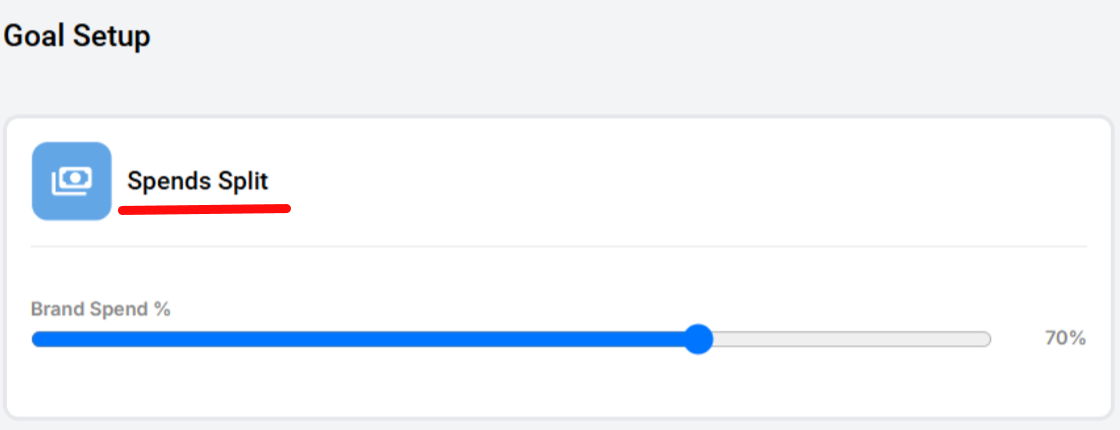
Goal Setup and Slider
b. Target
- Defines your campaign’s performance goal.
- Choose an optimization strategy (e.g., Optimize Cost Per Acquisition) and enter your target value.
- Example: Setting a CPA target of 8 tells Niko to maintain your average acquisition cost around that value.

Step 4: Save Configuration
Once all settings are defined:
- Click Save Configuration to apply your changes.
- You'll see Save Configuration at bottom left
Niko will immediately begin using your updated setup to guide bidding, budgeting, and optimization decisions.
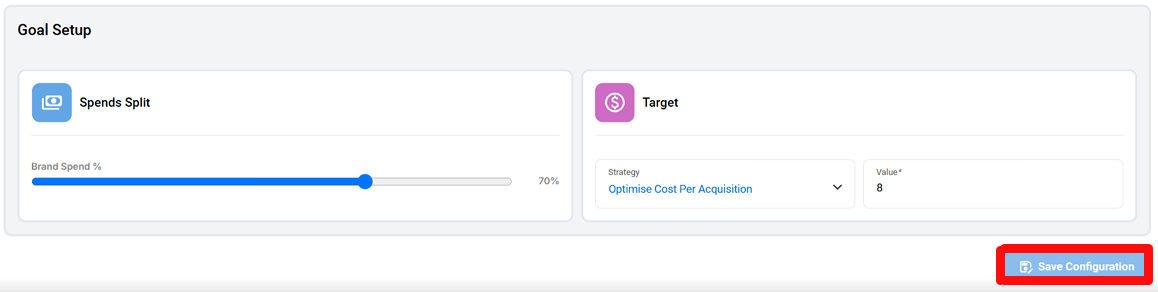
Save Configuration Position
Pro Tip:
Review configurations regularly to ensure they align with your latest campaign goals and performance trends.
Campaign Log Overview -
💡 Why It Matters
- The Logs section provides complete transparency into how Niko automates and scales app marketing.
- Advertisers can trace every optimization — from top-level campaign budget shifts to the finest keyword-level tweaks.
- This ensures confidence in AI-driven decisions and enables data-backed growth management.
1. Campaign Tab
- Displays all campaign-level updates made by Niko in real time.
Shows actions such as budget changes, pauses, or restarts across campaigns.
Each log entry includes:
- Date: When the action occurred.
- Campaign Name: The affected campaign.
- Initial & Final Values: Budget or setting before and after the change.
- Action: What Niko adjusted (e.g., Daily Budget Updated, Campaign Paused).
- Example: Niko doubled the Brand Campaign budget from $150 → $300 after detecting strong performance trends.
2. Ad Group Tab
Focuses on intra-campaign adjustments — the optimizations Niko performs within specific ad groups.
Tracks actions like:
- Bid or budget updates based on ad group performance.
- Ad group activation or pausing to align spend with user intent and seasonality.
- Helps advertisers see how AI reallocates resources between ad groups to ensure efficient performance under each campaign.
3. Keywords Tab
Logs every keyword-level optimization Niko executes to refine targeting and improve cost efficiency.
Records include:
- Keyword additions or removals based on performance signals.
- Bid adjustments to prioritize high-intent or incremental keywords.
- Discovery of new variants, including user typos and unconventional search terms that drive additional reach.
- Offers clear visibility into how Niko’s advanced keyword intelligence evolves campaign strategy over time.
